Docker Compose for a Web App with a Database: A Step-by-Step Example for Beginners
G
GnurtFull-stack developer
10 min read
In this article
In the previous article, you wrote a Dockerfile for a small web app, built it into an Image, and ran a Container. This article uses that same app and Dockerfile to run the app and MySQL together with Docker Compose, in a single command (docker compose up). Make sure Docker is installed — if it isn’t yet, follow Docker’s installation guide first. Your my-app folder already has the app files and the Dockerfile from the previous article — it’s only missing the three files this article adds: docker-compose.yml, .env, and .gitignore:
In the tree above, package.json and server.js are the app code, the Dockerfile is the recipe for building the Image, .dockerignore keeps extra files out of the Image, and .gitignore keeps .env out of Git. How to create each app file is covered in the Dockerfile article; this article only adds the Compose file, the .env file, and the .gitignore file.
What is Docker Compose?
Running a Container with docker run works fine, but a real app usually needs a database too. Typing a long command for each Container is tedious and easy to get wrong. Docker Compose solves this with a single YAML file (YAML is a text format where indentation shows the structure) describing all the Containers at once.
In that file, each block of configuration is called a service — for example, the web and db services below. When you run it, Compose creates a Container from each service. For each service, you say which Image to use, which ports to open, and which Volumes to attach. Then a single command (docker compose up) starts the whole system. Compose reuses your Dockerfile and Image; it doesn’t replace them. The commands in this article use docker compose (with a space), the current form of Docker Compose.
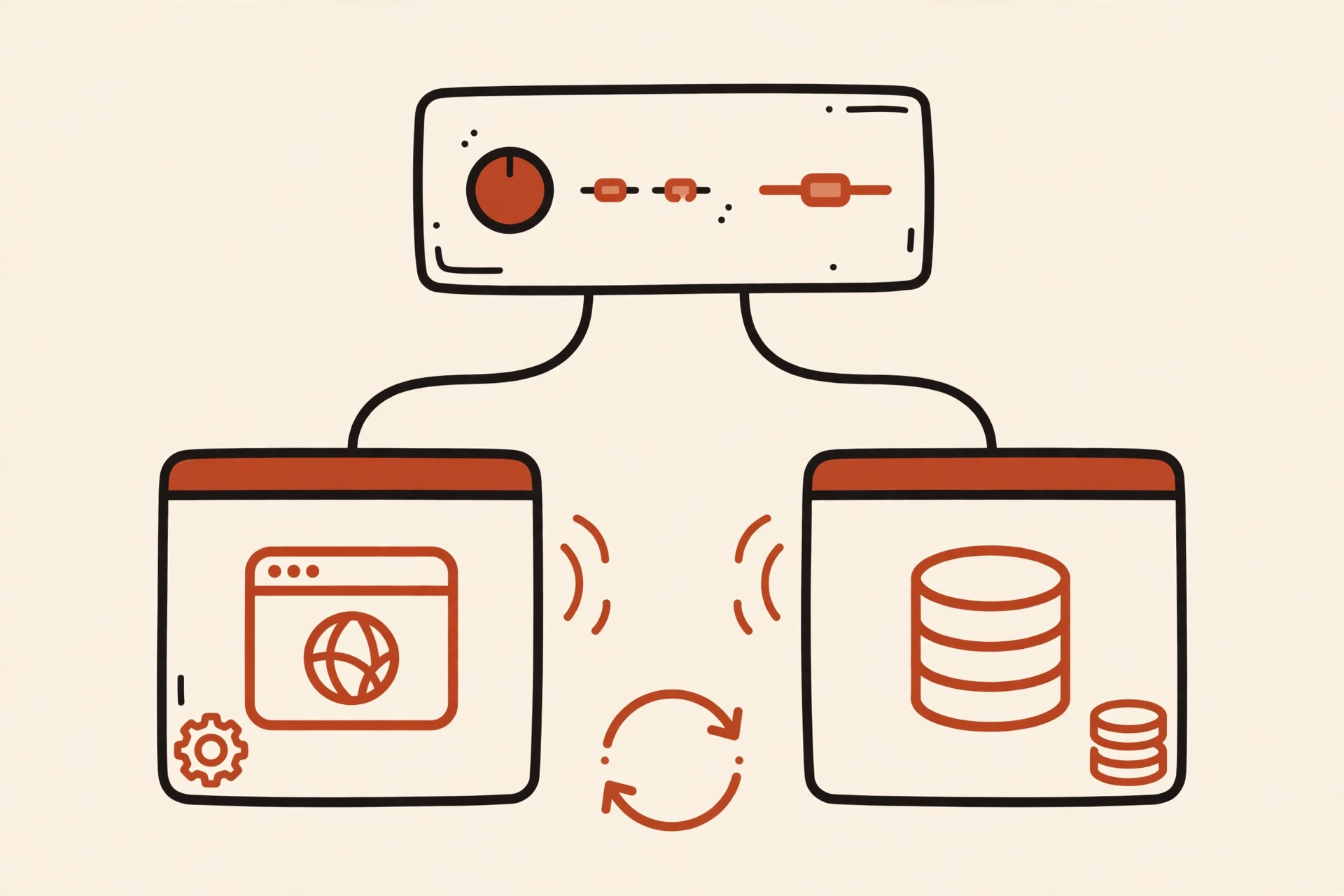
One Compose file controls both the web and the database.
Writing docker-compose.yml for Web + Database
Create a file named docker-compose.yml in the project folder with the contents below. The file describes two services: web is your app, and db is the MySQL database.
web builds the Image from the Dockerfile in the current folder — the . in build: . means the current folder. The line "3000:3000" maps port 3000 on your machine to port 3000 in the Container, so opening localhost:3000 takes you to the app.
environment under web passes the database connection details to the app. Note the line DB_HOST: db: in Compose, a service name is also a hostname. Compose automatically places the services on a shared Network, so the app only needs to use the name db to find MySQL. From inside the app’s Container, localhost points back to that Container itself, so the app can’t use localhost to reach MySQL; localhost:3000 is only for opening the app in the browser on your own machine. DB_USER: root is the account the app uses to log in to MySQL, and DB_NAME: appdb is the name of the database the app needs — it must match the database name that db creates below.
depends_on tells Compose to start db before web. It only controls the startup order — it doesn’t wait for MySQL to be ready to accept connections, so the app may report a connection error on the first run; wait for MySQL to finish starting, then reload the page (see the errors section below).
db uses the MySQL 8.0 Image straight from Docker Hub — Compose downloads it if your machine doesn’t have it yet, so you don’t need to write a Dockerfile for the database.
MYSQL_ROOT_PASSWORD sets the password for the root account, and MYSQL_DATABASE creates a database named appdb. These two variables only take effect the first time MySQL initializes its data, when the Volume is still empty; if the Volume already has data, changing the password or database name in the .env file won’t change the existing data.
volumes under db attaches the db-data Volume to /var/lib/mysql, where MySQL stores its data inside the Container — so the data survives even if the Container is stopped or deleted, unless you also delete the Volume with down -v (see below).
volumes at the end of the file declares the db-data Volume so Compose creates and manages it.
One note about DB_USER: root: this article lets the app log in as root to keep the example simple, since it only runs on your own machine. For a real app, create a separate account with access only to that database, instead of giving the app the admin account.
Notice that the password is not written directly in the Compose file. The Compose file usually goes into Git with the code, but the .env file doesn’t, so the password lives in .env. That only separates the password from the Compose file — the .env file itself still holds the password as plain text, so you must keep it out of Git and out of the Image.
When Compose reads the file, it replaces ${DB_PASSWORD} with the value from the .env file in the same folder before passing it to the Containers. How the app reads these environment variables is explained in the Dockerfile article. Create the .env file with this content:
DB_PASSWORD=mat-khau-vi-du
mat-khau-vi-du is only an example password — when you do this for real, change it to a strong password. Since both services use the same password, you only need to declare it once.
To keep the password out of Git, add .env to .gitignore. If the folder doesn’t have a .gitignore file yet, create it with a single line:
.env
As for the Image, you don’t need to do anything more: the .dockerignore file from the Dockerfile article already has a .env line, so COPY . . doesn’t copy this file into the Image. If you skip the .dockerignore file, the password will end up in the Image, so check that file before you build.
Running, Checking, and Stopping
Before starting, check that the Compose file is written correctly:
docker compose config -q
This command only checks the syntax and the environment variable substitution — it doesn’t start anything. If it reports no errors, run the following commands in the project folder:
docker compose up -d --build   # build and start in detached mode
docker compose ps              # show the status of the containers
docker compose logs -f web     # show the app's logs (Ctrl+C to exit)
In the command block above, up means creating and starting the Containers described in the file. -d means detached mode, so the terminal window isn’t held by the running process. --build means rebuilding the Image before starting. ps lists the status of the Containers, and logs -f web shows the app’s logs in real time — web here is the service name, so the command only shows the app’s logs. Press Ctrl+C to exit log viewing.
After running these, docker compose ps should list both the web and db services as running, and the web log should contain the line App chạy ở cổng 3000. If ps doesn’t show both services, check the log of the missing service to see where it stopped.
Open localhost:3000. This time you’ll see the greeting with the time from MySQL, which means the app has connected to the database. If the page first reports Chưa kết nối được database: ..., MySQL hasn’t finished starting yet: wait, then reload the page. The example app reconnects to the database on every request, so reloading is enough; with a real app, you need a retry mechanism or a healthcheck (see the errors section below).
When you’re done and want to stop the whole system, run this command in the project folder:
docker compose down # stop and remove the containers, keep the volume
After docker compose down, the data stays in the Volume. docker compose down -v is different: that command also deletes the Volume, which means the data is lost, so use it only when you really want to start over.
docker compose down -v # also delete the Volume, data is lost
Changing Code and Running Again
When you change code, you don’t need to touch the database. Just edit server.js as usual, then run docker compose up -d --build again. Compose rebuilds the Image and recreates the web Container, while db keeps running and the data in the Volume is not lost — unless you run docker compose down -v.
Common Errors When You First Use Docker Compose
The app starts before the database is ready. You open localhost:3000 and the page reports Chưa kết nối được database: ... even though the db Container is running. The cause is that depends_on only controls the startup order — it doesn’t wait for MySQL to be ready to accept connections. The example app reconnects to the database on every request, so you only need to wait for MySQL to finish starting, then reload the page. With a real app, add a healthcheck to db and condition: service_healthy in depends_on, so Compose only starts web once the database is ready to accept connections; that approach is documented in the Sources section below.
Wrong YAML indentation. Compose reports an error when it reads the file. YAML uses spaces to show nesting and forbids the Tab key for indentation: a single stray Tab is enough to break the structure. Check the file with docker compose config -q as above, then fix the wrongly indented lines to the right number of spaces, using the space bar only.
Frequently Asked Questions
Does Docker Compose replace Docker?
No. Compose still uses Docker to run Containers — it just helps you describe and control several Containers at once with a single file.
Can you use Docker Compose in production?
You can, but this article only uses an example password and a configuration for your own machine. To move to production, you need to keep secrets separate from code, back up Volumes regularly, and monitor logs — all outside the scope of this article.
You changed the password in .env, but MySQL still uses the old one?
That’s right, if the db-data Volume already has data from a previous run. The MYSQL_ROOT_PASSWORD and MYSQL_DATABASE variables only take effect when MySQL initializes its data for the first time. To use the new password, recreate the Volume with docker compose down -v and run again — and remember that this command deletes all the old data.
Conclusion
You now know how to use Docker Compose to run a web app and MySQL together, and how to keep the data in a Volume.
The next article in this series covers the most useful Docker commands and how to debug a Container that isn’t behaving as expected: Common Docker Commands and Frequent Errors (coming soon).
Bạn có thể sử dụng tài khoản Google để bình luận. Google chỉ chia sẻ tên và địa chỉ email đã xác minh để hiển thị tên của bạn. Bạn có thể đăng xuất bất cứ lúc nào.
To make your web app run anywhere, you need to package it, and the Dockerfile is the file that tells Docker how to package it. In this article, you will write your first Dockerfile for a small web server written in Node.js (using Express), then build it into an Image and try running a Container...
When working with Docker, you will frequently use four core concepts: Image, Container, Volume, and Network. Simply put, an image is the blueprint, and a container is the image running. A volume keeps data, while a network connects containers to each other. These four concepts follow an order: first the blueprint, then the running copy...
What is Docker? Docker is an open platform that helps you package, ship, and run an app. An app runs in a separate environment called a container. In short, Docker helps an app run the same way on many different machines. Everything the app needs is packaged together. What Is Docker? According to Docker’s official...






Bình luận
Bạn có thể sử dụng tài khoản Google để bình luận. Google chỉ chia sẻ tên và địa chỉ email đã xác minh để hiển thị tên của bạn. Bạn có thể đăng xuất bất cứ lúc nào.
Đăng nhập bằng GoogleChưa có bình luận nào. Hãy là người đầu tiên!