What Is Windows Sandbox? How to Create a Separate Windows to Test Software Safely
G
GnurtFull-stack developer
6 min read
In this article
Ever downloaded a program you weren’t sure was safe? Installing it on your main machine feels risky, but not installing it means you never find out how it runs. The cleanest way is to open a separate Windows, fully isolated from your main machine, try it there, and close it when you’re done. Windows has a built-in tool for exactly that, called Windows Sandbox, and many Windows Pro users don’t even know it exists.
What is Windows Sandbox?
Windows Sandbox is a lightweight, isolated desktop environment for safely trying out apps. Put simply, it’s a clean Windows running in a window on your machine, completely separate from your main Windows.
Why is isolation safe? Sandbox has its own desktop, files and settings — it can’t see or touch your main Windows. You can install a program or open a strange file inside Sandbox, and every change stays in there. Close the window and the whole Sandbox is wiped clean: installed programs, saved files, every change disappears. Your main machine is untouched.
Sandbox is available on Windows 10 Pro version 1903 and later, and on Windows 11 Pro, Enterprise and Education. The Home edition doesn’t have it, on either Windows 10 or Windows 11.
How to turn on Windows Sandbox
First, check whether your machine can use it, because Sandbox is only on Pro, Enterprise and Education. If your machine runs Home, the Sandbox entry won’t appear in the features list at all — and that’s the most common reason people can’t find it. Check first and save yourself the trouble.
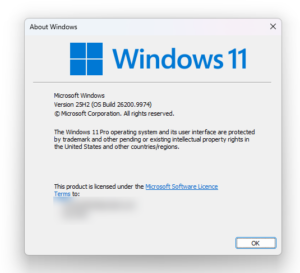
Press Win + R, type winver, Enter. It shows your Windows edition right away. You need Pro, Enterprise or Education.
The winver window shows your Windows edition — you need Pro, Enterprise or Education to use Sandbox.
Your machine also needs virtualization turned on in the BIOS and at least 4GB of RAM (Microsoft recommends 8GB). Most machines running Windows 11 Pro already have virtualization on, especially if you’ve used WSL.
Steps to turn it on:
Click Start, type “Turn Windows features on or off” and open it (or press Win + R, type optionalfeatures, Enter).
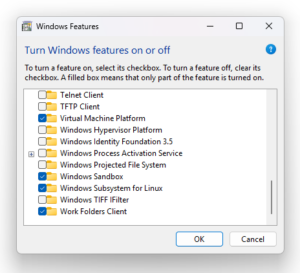
Scroll down, tick “Windows Sandbox”, click OK.
Restart your machine if it asks.
Then click Start, type “Windows Sandbox” and open it. If you type it and don’t see it yet, your machine probably hasn’t restarted since you turned the feature on — restart and search again. Still nothing? Press Win + R, type WindowsSandbox.exe, Enter.
Tick Windows Sandbox in the features list, then click OK.
If you don’t see “Windows Sandbox” in the list, your machine doesn’t meet the requirements — usually because it’s running Home, or virtualization isn’t turned on in the BIOS.
There’s another way: PowerShell. Open PowerShell as an administrator and run this command:
This command turns on the Sandbox feature (its internal name is Containers-DisposableClientVM); the -Online parameter means it applies to the Windows that’s running, and -All turns on the features it depends on. After it runs, restart your machine and open Sandbox from Start.
What is Sandbox for?
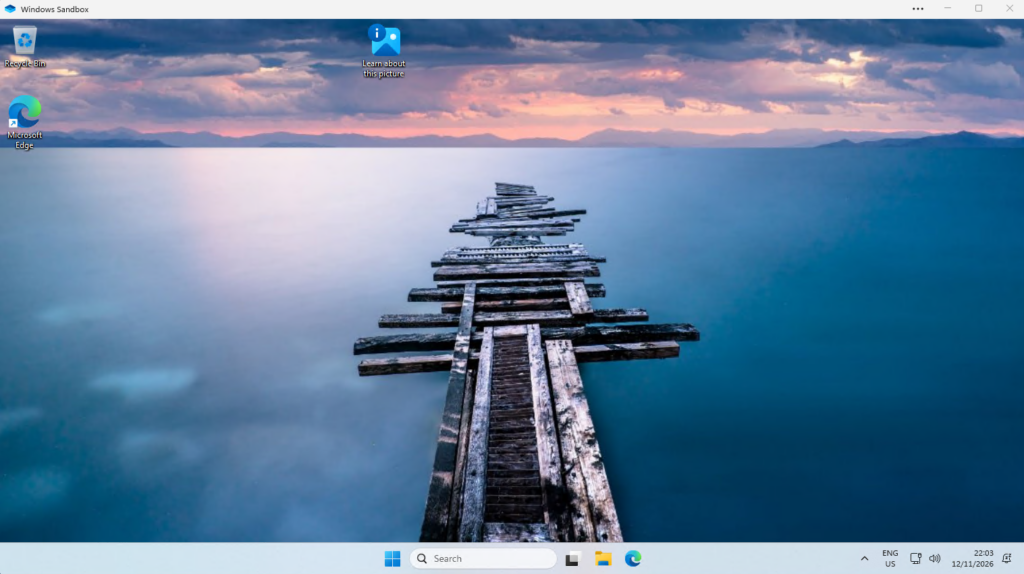
The Sandbox desktop after opening — a clean Windows, completely separate from your main machine.
Sandbox exists for trying things you don’t fully trust. The common thread is that you want to see how something runs without committing anything to your main machine:
Try installing an unfamiliar program before deciding whether to install it on your main machine.
Open a downloaded file you’re suspicious of (an email attachment, a file from an unknown source).
Try a new tool without letting it write all over your system.
Because Sandbox is wiped clean when you close it, there’s one thing to remember: if you want to keep anything, copy it out to your main machine before closing. That’s not a bug. Sandbox is designed to be thrown away after each use. Think of it as a sheet of scrap paper: try things inside it, keep the results outside.
One more thing to note: Sandbox has network access by default. That means an unfamiliar program running in Sandbox can still reach your local network. Isolation doesn’t mean there’s no network risk, so keep that in mind if you’re testing something you really don’t trust.
When do you need VirtualBox or Hyper-V?
Sandbox only fits when you test something and throw it away. If you want to keep things long-term (a set of tools installed, state saved, everything still there when you open it again tomorrow), you need a real virtual machine — VirtualBox or Hyper-V.
The core difference is persistence. A virtual machine has its own virtual disk, so everything you install and save stays there. Sandbox has no persistent disk: every time you open it, it’s a fresh, clean Windows. That’s why a virtual machine is heavier (it runs a full operating system with its own disk) and needs more preparation: you need your own Windows ISO file and a license key.
VirtualBox is free and runs on Home too. Hyper-V comes with Windows Pro but isn’t on Home. If your machine is Home and you still want an isolated environment you can keep, VirtualBox is the sensible choice.
Which one should you choose?
Start from what you need. If you just want to test something once and throw it away, Sandbox is the fastest: no ISO, no key, just turn the feature on and use it. If you want to keep things long-term, with settings and state saved, use VirtualBox or Hyper-V. And if your machine is Home, the answer is already clear: there’s no Sandbox, so go straight to VirtualBox.
Frequently asked questions
Can Windows Home use Sandbox?
No. Sandbox is only on Pro, Enterprise and Education. On Home, use VirtualBox, or upgrade to Pro.
Does closing Sandbox delete everything inside it?
Yes, everything: installed programs, saved files, all changes disappear when you close it. If you want to keep something, copy it out to your main machine first.
Conclusion
If your machine runs Windows 11 Pro, the fastest way to get a separate Windows without risking your main machine is to turn on Windows Sandbox and open it once. It only takes a few minutes to turn the feature on, and after that, whenever you need to test an unfamiliar program, you open Sandbox, try it, close it, and it’s clean. Only when you need to keep things long-term should you think about VirtualBox or Hyper-V.
Picture this: your laptop is at home, your phone is with you, and a server sits somewhere else. To open the server’s admin page from outside, you usually have to open a port on your router — which means configuring the router and leaving that port exposed to the internet. Tailscale skips that step: it connects...
Vietnam's Artificial Intelligence Law 2025 manages AI across 3 risk levels and requires labeling of AI content. Key points and a compliance checklist for businesses.






Comments
You can use your Google account to comment. Google only shares your verified name and email address to display your name. You can log out at any time.
Sign in with GoogleNo comments yet. Be the first!