This article is a quick reference for the Docker commands beginners use most, with the commands grouped by task and shown with real examples. You’ll learn which command to use when, how to check things and clean up, and how to fix common errors. It sticks to the basic commands beginners usually need, and doesn’t go into advanced configuration.
The examples in this article all use the series’ sample app: the image web-app, the container named web, and the app listening on port 3000. Replace these names with your own when you run the commands.
Commands for Viewing and Inspecting
docker ps lists the containers that are running.
docker ps -a also lists containers that have stopped.
docker images lists the images on your machine.
docker version shows the version of Docker you’re running, both the client and the server.
docker info shows an overview of Docker on your machine, such as how many containers and images you have.
docker logs shows a container’s logs to find errors.
docker logs web
docker logs --tail 100 web
docker logs -f web
--tail 100 shows only the last 100 lines; -f follows the log continuously — press Ctrl+C to exit.
docker inspect shows the detailed configuration of a container.
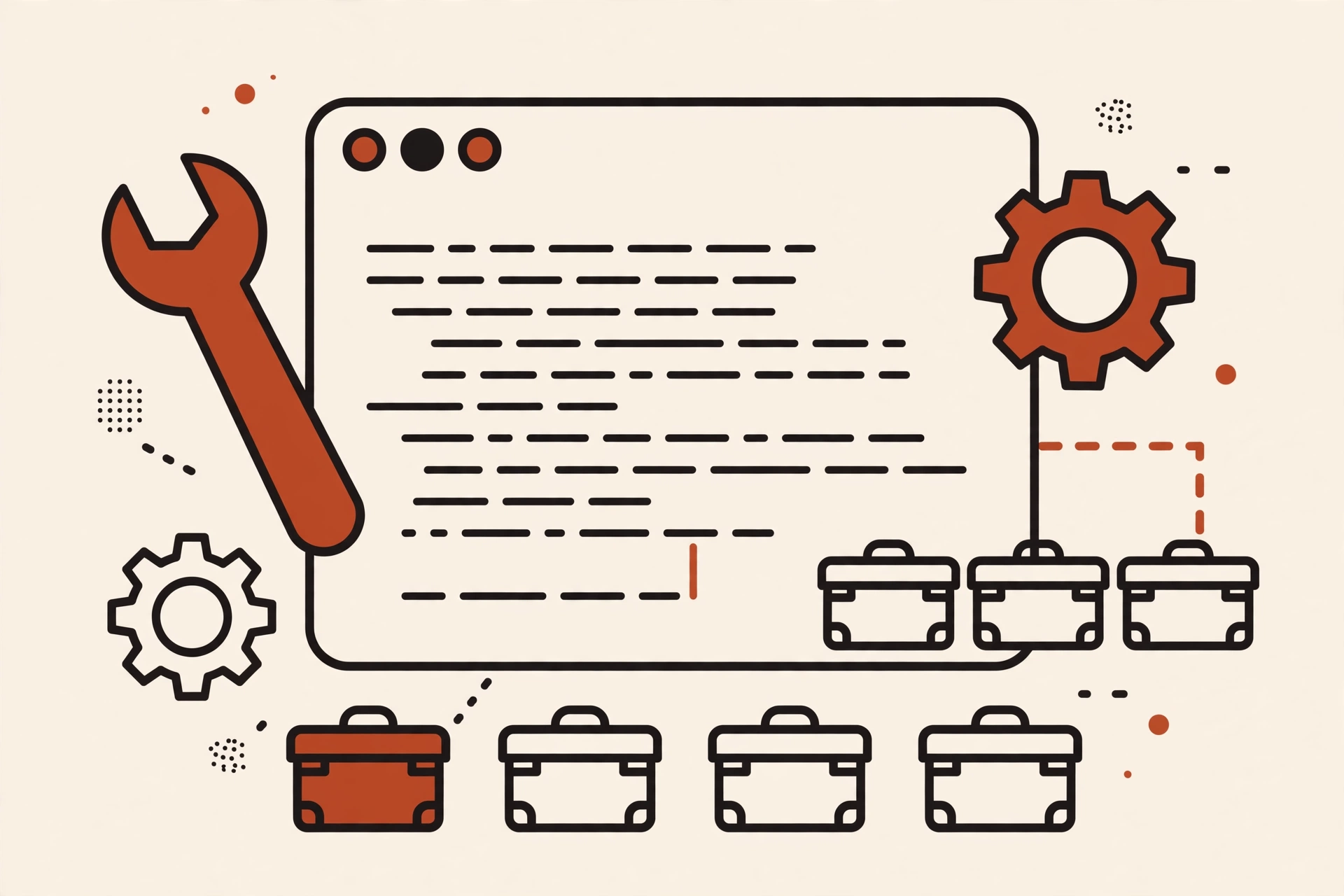
Docker commands grouped by task.
Commands for Creating, Running, and Managing Containers
docker run creates and runs a new container.
docker run -d --name web -p 3000:3000 web-app
-d runs the container in the background; --name names the container web; -p 3000:3000 maps port 3000 on your machine to port 3000 in the container; web-app is the image to run. Open localhost:3000 in your browser to check that the app is running.
docker stop web
docker start web
docker restart web
docker rm web
docker stop stops a container but keeps it; docker start runs a stopped container again; docker restart stops and restarts a container in a single command. docker rm deletes a container, but by default it can only delete a container that has stopped, so run docker stop first.
docker exec -it lets you enter a running container and type commands.
docker exec -it web sh
The -i option keeps the input open so you can type commands, while -t provides a terminal to display the output. The container must be running to enter it, and the image must have a shell: Alpine images use sh; only images with Bash use bash.
Commands for Managing Images
docker build creates an image from a Dockerfile.
docker build -t web-app .
-t names the image web-app; the . means build from the current folder, which must contain a Dockerfile.
docker pull downloads an image to your machine.
docker pull node:26-alpine
node is the image name, and 26-alpine is the tag (the version). Use a specific tag instead of latest so the result is more stable.
docker image prune by default only deletes dangling images — images with no tag that no container references. Add -a to delete every image no container uses: docker image prune -a. A deleted image may need to be downloaded or built again.
Commands for Managing Volumes and Networks
docker volume ls lists the volumes.
docker network ls lists the networks.
docker volume prune deletes volumes no container uses. By default, it only deletes anonymous volumes — volumes with no name, created automatically by Docker. Add -a to also delete unused named volumes: docker volume prune -a. Check carefully before running it, because data in a deleted volume is hard to recover.
Commands for Checking and Cleaning Up
docker system df shows how much disk space Docker is using.
docker container prune deletes containers that have stopped. Run docker ps -a first to see which containers will be deleted.
Beginners should not run docker system prune -a before they understand what it deletes. This command deletes all stopped containers, unused networks, images no container references, and build cache that is no longer used. By default it does not delete volumes; only adding --volumes also deletes unused anonymous volumes. Check carefully before running it.
Quick Reference
What you want to do
Command
View running containers
docker ps
View stopped containers too
docker ps -a
View the Docker version
docker version
View error logs
docker logs web
Enter a container
docker exec -it web sh
Run a new container
docker run -d –name web -p 3000:3000 web-app
Stop a container
docker stop web
Restart a container
docker restart web
Delete a stopped container
docker rm web
Build an image
docker build -t web-app .
Download an image
docker pull node:26-alpine
View how much disk space Docker uses
docker system df
Common Errors and How to Fix Them
Port already in use. The message you usually see is “port is already allocated”. Run docker ps to see which container is holding that port, then stop that container with docker stop <container-name> or switch to a different port when you run it. If docker ps shows no container holding the port, another program on your machine is using it — stop that program or switch to a different port.
Cannot connect to the Docker daemon (the Docker process that runs in the background). The message you usually see is “cannot connect to the Docker daemon”. The most common cause is that Docker isn’t running: Docker Desktop hasn’t finished starting, or the Docker service isn’t running. Start Docker Desktop or the Docker service, then run docker info to check whether Docker is responding. If Docker is running and you still get the error, run docker context ls to see which daemon the Docker CLI is pointing to.
Out of disk space. The message you usually see is “no space left on device”. The usual cause is old images and containers taking up a lot of space. Check in this order: docker system df to see which type is using the most, then docker ps -a, docker images, and docker volume ls to see exactly what can be deleted. Only delete things you’re sure you no longer need, and don’t run docker system prune -a right away to free space.
Container exits right after starting (Exited). The container’s main command has finished. Check the logs with docker logs <container-name> to find out why.
Cannot download an image. The messages you usually see are “pull access denied” or “image not found”. These two errors are different: “image not found” usually means a wrong image name or tag; “pull access denied” usually means a private image you haven’t logged in to — log in with docker login and try again.
Data lost after deleting a container. Data written inside a container lives in the writable layer and disappears with the container when it is deleted; only data stored in a volume remains. Read the article about image, container, volume, and network again to understand how to keep data with a volume.
When you hit an error, read the logs first, then fix it step by step.
Good Habits When Using Docker Commands
Read the logs with docker logs before deleting a container or an image.
Name your containers when you run them with --name, so they’re easy to recognize in docker ps.
Use a specific tag instead of latest so results stay stable.
Write down the project’s full docker run command (container name, ports, volumes) in a personal note, so you don’t have to remember it next time.
Frequently Asked Questions
How do docker ps and docker ps -a differ?
docker ps only shows containers that are running. docker ps -a also shows containers that have stopped. When you can’t find a container, try docker ps -a first.
Does deleting a container also delete the image?
No. Deleting a container doesn’t delete the image it was created from, and you can create a new container from that image. But data written inside the container (the writable layer) is lost when the container is deleted; only data in a volume remains. To keep data after deleting or recreating a container, store it in a volume — see the article about image, container, volume, and network again.
Which command is the most dangerous for a beginner?
No single prune command is the most dangerous in every case — the risk is in how much each command deletes. docker container prune deletes every stopped container; docker image prune by default only deletes dangling images; docker volume prune by default only deletes unused anonymous volumes; docker system prune -a cleans up several kinds at once, so it needs the most careful checking. Beginners should start with the viewing and inspecting commands.
Conclusion
You now have a quick reference for the Docker commands beginners use most, and how to fix common errors. Start with the viewing and inspecting commands, and read the logs before deleting anything.
Bạn có thể sử dụng tài khoản Google để bình luận. Google chỉ chia sẻ tên và địa chỉ email đã xác minh để hiển thị tên của bạn. Bạn có thể đăng xuất bất cứ lúc nào.
In the previous article, you wrote a Dockerfile for a small web app, built it into an Image, and ran a Container. This article uses that same app and Dockerfile to run the app and MySQL together with Docker Compose, in a single command (docker compose up). Make sure Docker is installed — if it...
To make your web app run anywhere, you need to package it, and the Dockerfile is the file that tells Docker how to package it. In this article, you will write your first Dockerfile for a small web server written in Node.js (using Express), then build it into an Image and try running a Container...
When working with Docker, you will frequently use four core concepts: Image, Container, Volume, and Network. Simply put, an image is the blueprint, and a container is the image running. A volume keeps data, while a network connects containers to each other. These four concepts follow an order: first the blueprint, then the running copy...




Bình luận
Bạn có thể sử dụng tài khoản Google để bình luận. Google chỉ chia sẻ tên và địa chỉ email đã xác minh để hiển thị tên của bạn. Bạn có thể đăng xuất bất cứ lúc nào.
Đăng nhập bằng GoogleChưa có bình luận nào. Hãy là người đầu tiên!